
Schedules
Some transactions come back regularly: the rent, a salary, a loan payment. Write them once as a schedule, and DovleEntry writes each occurrence for you, in the past as in the future. That is also how it can show you where your balances are heading.
The Schedules tab lists your schedules. Open it with Ctrl+4 or ViewSchedules.
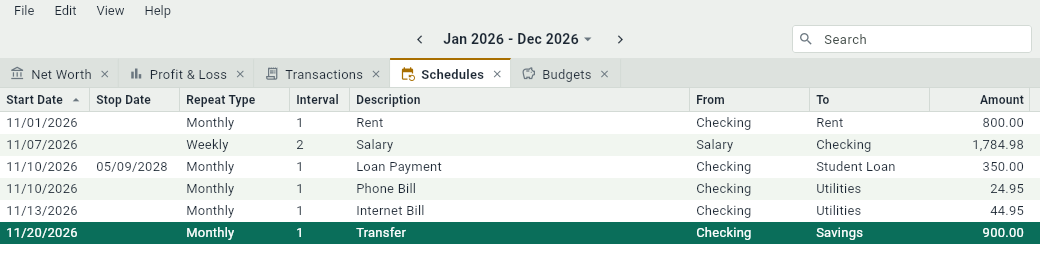
Creating a schedule
In the Schedules tab, press Ctrl+N. The panel of a schedule is the panel of a transaction, with the fields of the repetition at the top:
- Start Date: the date of the first occurrence.
- Repeat Type: daily, weekly, monthly, yearly, or on a day of the week of the month, like every second Tuesday or every last Friday of the month. The choices depend on the start date.
- Every: how many days, weeks, months or years between two occurrences: 2 weeks for a pay that comes every other week.
- Stop Date: the date of the last occurrence, if there is one. Leave it empty for a schedule that never ends.
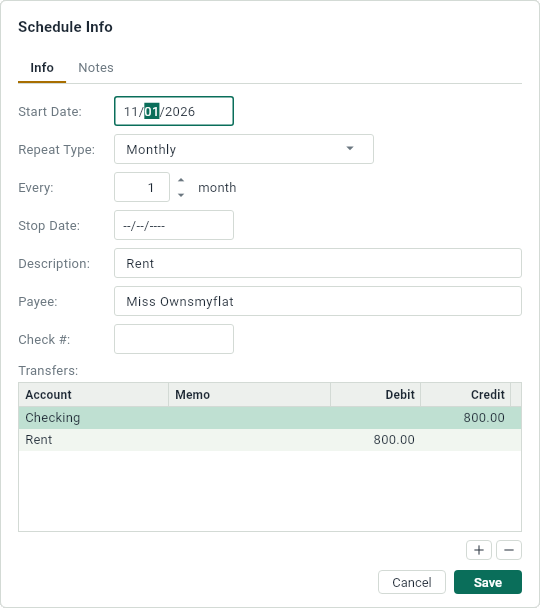
A transaction you already wrote can become a schedule: select it, in the Transactions tab or in the tab of an account, and press Ctrl+M, or choose EditMake Schedule from Selected. The panel opens with the transaction in it, repeated every month from a month later; adjust it and click Save. The transaction itself stays as it was.
Occurrences
From its start date on, each occurrence of a schedule appears in the Transactions tab and in the tabs of its accounts, with the mark, and counts in your balances like any transaction. Changing the schedule in the Schedules tab changes all its occurrences, except the ones you already changed one by one.
Changing an occurrence
You can change an occurrence right where it is, like any transaction. DovleEntry then asks how far the change goes:
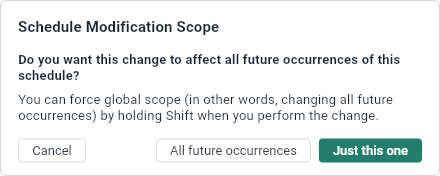
- Just this one: only this occurrence changes, like a rent that was exceptionally higher once. It becomes a transaction of its own: it loses its mark, and changes to the schedule don’t touch it anymore.
- All future occurrences: this occurrence and all the ones after it change, like a rent that goes up for good. The ones before stay as they were.
Hold Shift when you keep the change to choose all the future occurrences without being asked. In the preferences, you can turn the question off: changes then go to the one occurrence, or to all the following ones with Shift.
Skipping and stopping
- To skip an occurrence, a month with no salary for instance, remove it with Delete and answer Just this one.
- To stop a schedule from a date on, remove the first occurrence that shouldn’t happen and answer All future occurrences. The schedule then ends before it.
When an occurrence happens
An occurrence stays tied to its schedule until you reconcile it with your bank statement, or change it on its own: then it becomes an ordinary transaction. See Reconciling with your bank.