
Entering transactions
Transactions are written down in the Transactions tab, in the tab of an account and in the General Ledger. The Transactions tab is the quickest for a pile of receipts; the tab of an account is the natural place to go through a bank statement.
A new transaction
Press Ctrl+N and fill in the row that appears, from one cell to the next with Tab, then press Enter. The new transaction takes the date of the one that was selected. In the tab of an account, the account is already one side of it: only the other side, the Transfer, is left to fill in.
DovleEntry completes the description, the payee and the accounts as you type, from what your other transactions say, and fills in the rest of the row from the last transaction like it: see completion. A name that no account has becomes a new income or expense account.
Its details
Select a transaction and press Ctrl+I, or click , to see all of it.
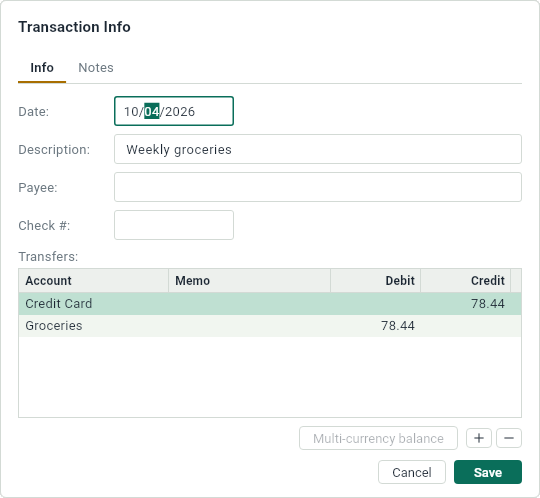
The Info side has the date, the description, the payee and the check number, and the table of its lines: for each one, its account, a memo, and the amount, as a debit or a credit. The Notes side is for anything longer you want to keep with the transaction.
Split transactions
Most transactions have two lines: one account gives, the other receives. A split transaction has more: a pay slip that goes to your checking account, to taxes and to your pension plan; a bill shared with someone.
Say you pay a 40.00 internet bill from Checking, and your roommate gives you back 20.00 in cash. Write the transaction as usual, from Checking to Utilities, for 40.00. Then, in its panel:
- Change the amount of Utilities to 20.00. A third line appears, without an account, for the 20.00 that are now missing.
- Give that line the account Cash.
- Click Save.

The transaction now says what happened: 40.00 left your checking account, the internet cost you 20.00, and you have 20.00 more in your wallet.
The lines of a transaction always balance: the debits add up to the credits. When they don’t, DovleEntry adds the difference as a line without an account, which you then give an account, or leave unassigned. That’s why removing a line, with under the table, puts its amount back as an unassigned line. In the Transactions tab, a split transaction lists all its accounts in From and To; to change its lines, use the panel.
Changing many at once
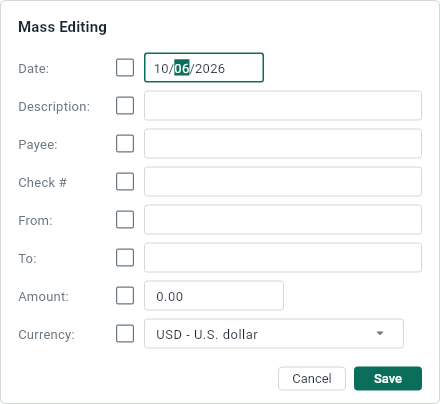
Select several transactions and press Ctrl+I: the Mass Editing panel opens. Each field has a box; when you click Save, the fields whose box is checked are given to every selected transaction, and the others stay as they are. Typing in a field checks its box. The accounts can only be changed when none of the transactions is split.
Moving, duplicating, removing
- Order within a day: transactions of the same date keep the order you give them. Move one with Ctrl++ and Ctrl+-, or by dragging it.
- Duplicate: Ctrl+D makes a copy of the selected transactions, for a purchase that comes back.
- Remove: Delete removes the selected transactions. Ctrl+Z brings them back.
- Repeat: Ctrl+M makes a schedule out of the selected transaction, so that it comes back by itself.