
Printing
DovleEntry prints what you see: the current tab, with its date range, its columns and its graphs. To print last year’s transactions, choose last year as the date range, go to the Transactions tab, and print.
How to print
- Choose FilePrint..., press Ctrl+P, or click in the bottom bar.
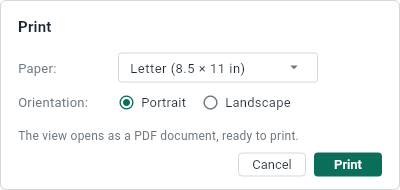
- Choose the paper, Letter or A4, and the orientation, Portrait or Landscape. DovleEntry proposes the paper of your country.
- Click Print. The view opens as a PDF document in the program that shows PDF files on your computer, ready to print.
The PDF document is written in the folder of temporary files. To keep it, save it from the program that shows it.
What is printed
- The table of the view, with its visible columns in their order, and all its rows, not only those on the screen. In the Transactions tab, the tab of an account and the General Ledger, a split transaction is printed with all its lines.
- The graphs that are shown, and the pie charts of Profit & Loss. In Net Worth, the pie charts of the assets and of the liabilities are printed when the button is on, though the tab shows its summary in their place.
- A title on each page: the name of the view and its date range, and the number of the page.
The columns get the width that their content needs. When a table is too wide for the page, DovleEntry makes its text smaller rather than cut amounts; in Expenses by Month, a whole year fits better in Landscape.
A new tab has nothing to print: there, is grayed out.