
The date range
Everything you see covers one period: the date range, at the top of the window. If it says “Jan 2026 - Dec 2026”, the Transactions tab lists the transactions of 2026, Profit & Loss adds up the income and the expenses of 2026, and Net Worth gives the balances on January 1 and on December 31.

Click the range to choose another kind of range, and the arrows and to go to the previous one or the next one. All of this is also in ViewDate Range.
Kinds of ranges
| Range | What it covers | Keys |
|---|---|---|
| Month | A month, from its first day to its last. | Ctrl+Alt+1 |
| Quarter | Three months: January to March, April to June, and so on. | Ctrl+Alt+2 |
| Year | A year, from the month the year starts in. | Ctrl+Alt+3 |
| Year To Date | From the start of this year to today: what has happened, and nothing that is still to come. | Ctrl+Alt+4 |
| Running Year | Twelve months that move along with today and end a little after it: at the end of the month after next, unless you change it. | Ctrl+Alt+5 |
| All Transactions | From the first transaction of the document to the last one, or to the end of the running year if that’s later. | Ctrl+Alt+6 |
| Custom... | The dates you choose. | Ctrl+Alt+7 |
A year starts in January unless you choose another month in the Document Properties section of the preferences, for a fiscal year that starts in April, say. The same section sets how many months ahead the running year ends.
Going back and forth
A month, a quarter and a year can be moved: or Ctrl+Alt+[ shows the one before, or Ctrl+Alt+] the one after, and Today (Ctrl+Alt+T) brings back the one that holds today. The other kinds of ranges have no previous or next one.
Custom ranges
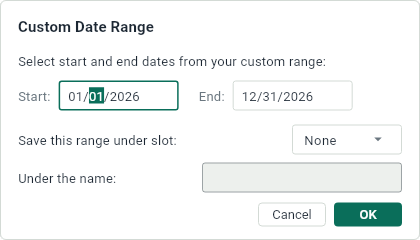
Choose Custom... and give the first and the last day of the range. To use the same range again later, save it under one of the three slots, with a name: it then appears in the menus of the date range, and Ctrl+Alt+8, Ctrl+Alt+9 and Ctrl+Alt+0 show the ranges of the three slots.
A date outside the range
When you change the date of a transaction to a day outside the range, a mark tells you before you keep the change: if the day is after the range, if it’s before. When you keep it, a month, a quarter or a year moves to show the transaction where it went. With the other kinds of ranges, the transaction leaves the view; All Transactions grows to hold it.