
Net Worth
The Net Worth tab is your balance sheet: every asset and liability account with its balance, their totals, and a summary of where you stand. Open it with Ctrl+1 or ViewNet Worth.
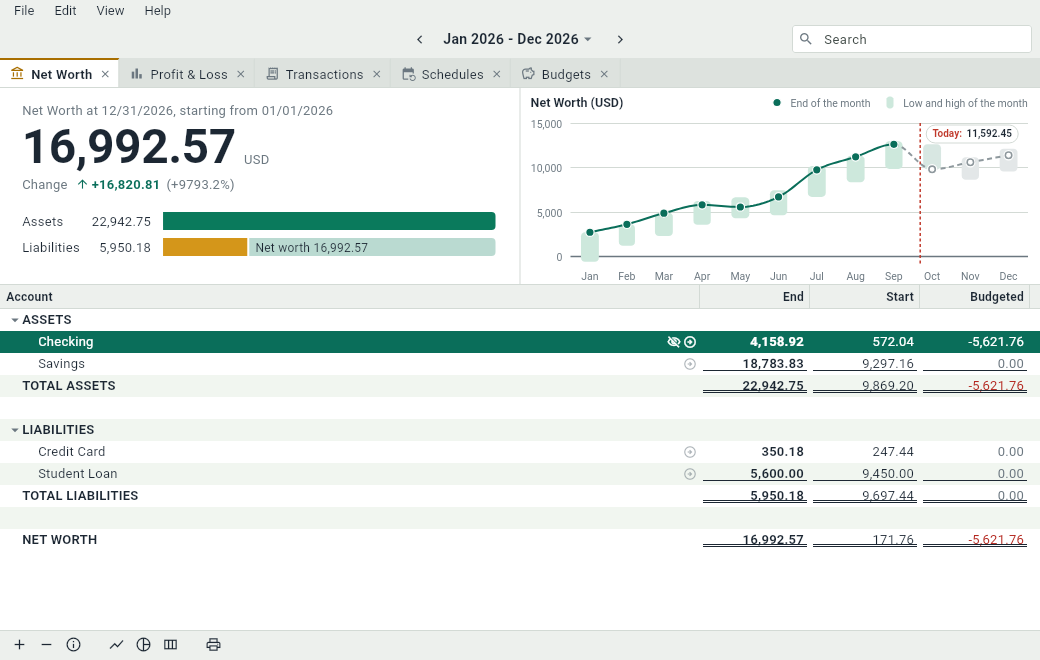
The summary
The top of the tab answers the question that the tab is about. On the left:
- Your net worth at the end of the date range, in the native currency of the document, and how much it changed since the range started.
- Two bars that weigh what you own against what you owe. The first one is your assets. The second one is your liabilities, followed by what is left: your net worth. Both are drawn to the same scale, so the two parts of the second bar are together exactly as long as the first. When you owe more than you own, what is missing shows at the end of the assets bar, in red.
On the right is the graph of your net worth. Show or hide it with in the bottom bar or Ctrl+Alt+G.
The graph
The graph follows your net worth over the date range, month by month:
- A point for each month, at the balance the month ends with, on a line that joins them.
- A bar behind each point, from the lowest to the highest balance of the month: a long bar is a month of big swings.
- What is still to come, from schedules and budgets, is gray, with a dashed line and hollow points. A red dashed line marks today, with your net worth today.
The periods follow the length of the range: days for two weeks or less, weeks for less than 100 days, months up to three years, quarters up to nine, and years after that. The scale of the amounts is the tightest round one that holds the points and the bars.
The sheet
Under the summary, the sheet lists your accounts under ASSETS and LIABILITIES, in their groups, with a total for each group, for each type and for your net worth. The totals are in the native currency; an account in another currency shows its balance in its own.
- Click or next to a group, or press → or ←, to open or close it.
- Click next to an account, double-click it or press Ctrl+] to open it in a tab of its own.
- Select an account and click , or press Ctrl+Shift+X, to leave it out of the totals and of the graph. An excluded account is grayed out; click to count it again.
- Amounts that are zero are dimmed, and amounts below zero are red.
This is also where you add, rename, move and remove accounts: see Accounts and groups.
Columns
| Column | What it shows |
|---|---|
| Account | The account or the group. |
| Account # | The number of the account, if you gave it one. Hidden at first. |
| End | The balance at the end of the date range. |
| Start | The balance at the start of the date range. It counts the scheduled transactions, but not the budgets. |
| Change | How much the balance changed between Start and End. Hidden at first. |
| Change % | The same change, in percent. Hidden at first. |
| Budgeted | What the budgets that use the account as their target still have to move through it in the date range. If your budgets are right, End plus Budgeted is what the balance will be. |
The columns that can be hidden are listed in in the bottom bar.