
Importing and exporting
DovleEntry imports the files that banks and other applications give: QIF, OFX and QFX, CSV, and the documents of DovleEntry and of moneyGuru. Choose FileImport..., or press Ctrl+Alt+I, and pick the file. Before anything goes into your document, the import window shows what the file holds, so that you can check it, fix it and choose where it goes.
The import window
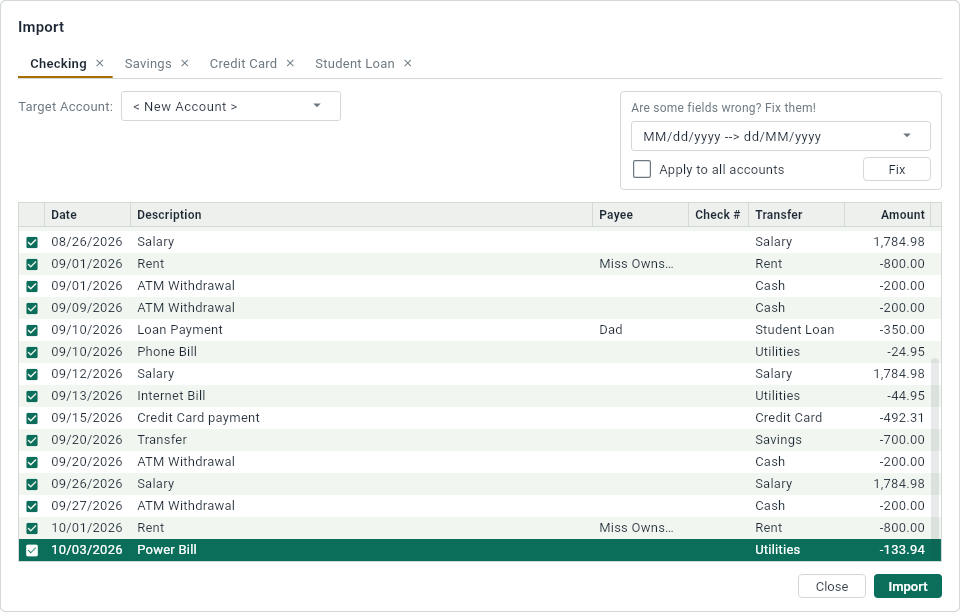
The file may hold several accounts: each one has a tab at the top of the window. For the account of the current tab:
- The table lists its transactions. Uncheck the box in front of those you don’t want.
- Target Account says where they go: into a new account, or into one of your accounts (see below).
- Import brings in the transactions of the current tab; the tab goes away, and the next account is shown. Close the tab of an account, with its cross, to leave that account out.
When every account is in, or when you click Close, the window closes. An import can be undone with Ctrl+Z, like any other change.
Fixing what was misread
Files are not always clear. A date like 01/02/03 can be read in several ways, and some applications put the payee where the description should be. When something looks wrong, choose the fix in the list under Are some fields wrong? Fix them! and click Fix:
- The date formats, like “dd/MM/yy --> MM/dd/yy”: the dates were read in the format at the left, and will be read in the one at the right. Fix can’t be clicked when that format would give impossible dates, like a 13th month.
- Description <--> Payee swaps the two.
- Invert Amounts turns what came in into what went out, and the other way around.
With Apply to all accounts checked, the fix applies to every account of the file that it can apply to.
Into an account you have
By default, an imported account becomes a new account. To add its transactions to one of yours instead, choose that account in Target Account. For OFX and QFX files, an account that was imported before is chosen by itself.
Then the table has two sides: at the left, the entries of your account that aren’t reconciled yet; at the right, the entries of the file. Two entries on the same row, with the mark between them, are the same transaction: importing updates yours with the date and the amount of the file, instead of adding it twice.
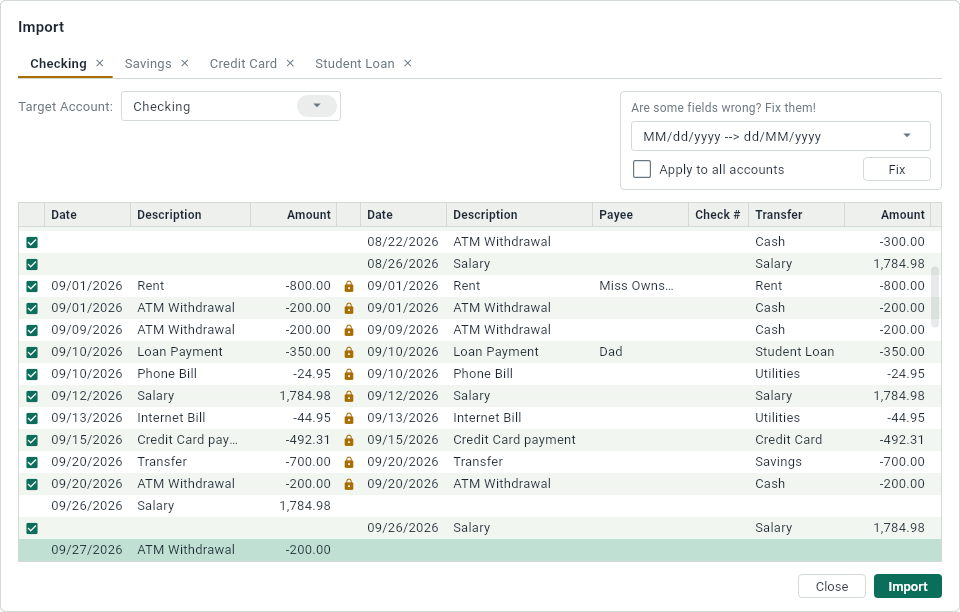
- Click to separate two entries that don’t belong together.
- Drag an entry onto another one to put them together.
OFX files say which transaction each entry is, so their entries are matched by themselves. An entry of the file that matches a reconciled entry of yours is shown too, unchecked: it is already checked against your statement.
CSV files
A CSV file is a table, and no two banks lay theirs out the same way. Before the import window, the CSV Options window shows the columns of the file and asks you what they are.
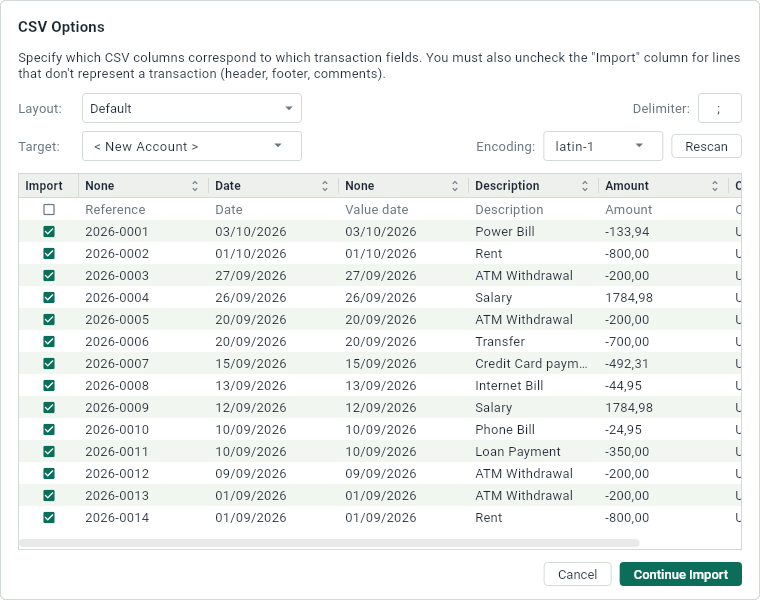
- Click the title of each column you recognize and choose what it is: the date, the description, the amount and so on. The date and the amount are required.
- Uncheck the lines that aren’t transactions, like the line of the titles at the top, or a total at the bottom.
- If the values look cut in the wrong places, type the character that separates them in Delimiter, choose the right Encoding, and click Rescan.
- Choose the Target account if you know it, then click Continue Import.
DovleEntry remembers your choices for next time. If you import CSV files from several banks, save the choices of each one as a layout: New Layout..., in the Layout list, saves them under a name, and choosing the layout of a bank sets everything at once, the target account included.
Exporting
FileExport..., or Ctrl+Alt+E, writes your transactions to a file for another application.
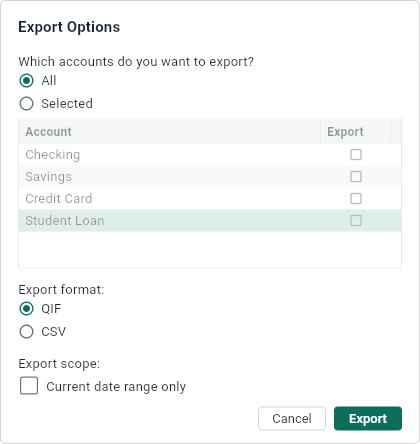
- Which accounts do you want to export? All of them, or the Selected ones, that you check in the list.
- Export format: QIF, read by most finance applications, or CSV, for a spreadsheet.
- Current date range only exports only the transactions of the date range.
Click Export and choose the name of the file.