
The tab of an account
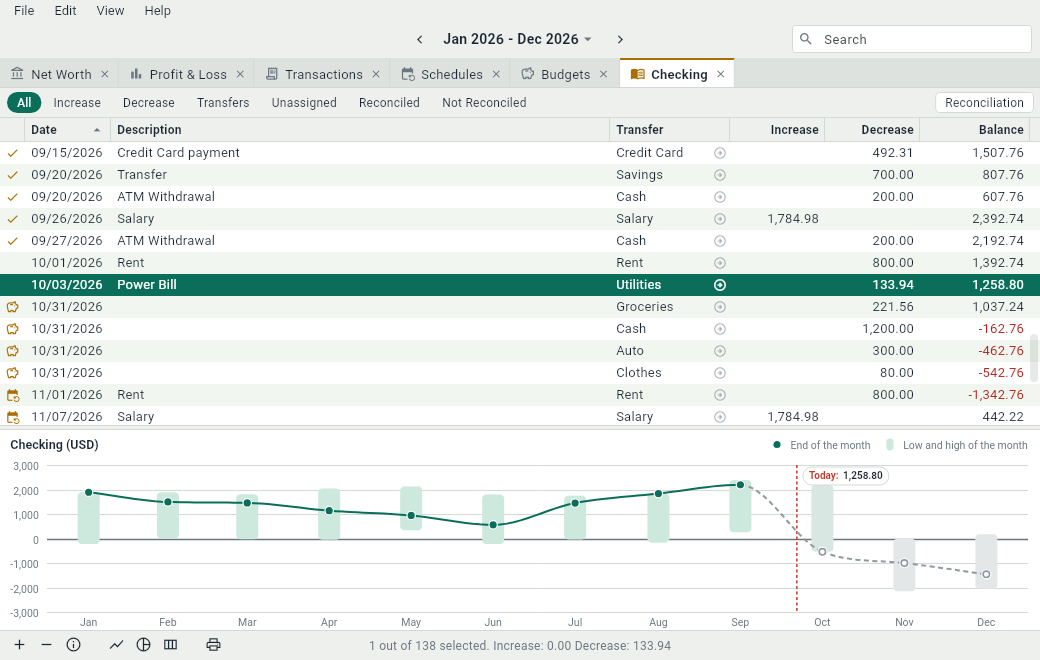
The tab of an account shows the transactions of the date range from the side of that account, like a bank statement: what came in, what went out, and the balance after each entry. To open it, click next to an account, or double-click the account, in any view that lists accounts.
Reading a row
Since the account is always one side of its entries, a row only names the other side, in Transfer, and the amount is split in two columns: what came in, in Increase, and what went out, in Decrease. A grocery bill of 42 paid from Checking is, in the tab of Checking, a row with “Groceries” in Transfer and 42 in Decrease.
| Column | What it shows |
|---|---|
| (status) | A mark for a special entry, as in Transactions. |
| Date | The date of the transaction. |
| Reconciliation Date | The date the entry has on your statement, once it’s reconciled. Hidden at first. |
| Check # | A check number or another reference. Hidden at first. |
| Description | What the transaction is. |
| Payee | Who was paid, or who paid you. Hidden at first. |
| Transfer | The other account, or the other accounts, of the transaction. |
| Increase | What the entry adds to the account. |
| Decrease | What the entry takes from it. |
| Balance | The balance of the account after the entry. In red when it’s below zero. |
For a credit card or a loan, Increase is what you owe more and Decrease what you paid back. If you prefer the words of accountants, choose Debit/Credit in : the two columns become Debit and Credit.
Income and expense accounts have no Balance column: what counts for them is what went through them during the range, which their TOTAL row gives.
The first and the last row
When the date range starts after the first entry of an asset or a liability, the first row is Previous Balance: the balance of the account when the range starts, as on a statement. The last row, TOTAL, adds up the increases and the decreases of the range, and gives the balance at its end.
The other side
Click in a Transfer cell to go to the account on the other side. For a transaction with more than two lines, each click goes to the next of its other accounts, so that you can go round all of them.
Showing only some entries
The buttons above the table keep only some of the entries: Increase and Decrease, Transfers for those that move money from or to another asset or liability, Unassigned, Reconciled and Not Reconciled. All shows them all again. At the right of the buttons, Reconciliation turns on the reconciliation of the account.
The graph
Under the table, the graph of an asset or a liability follows its balance as the graph of Net Worth follows your net worth: a point for the balance each month ends with, a bar from the lowest to the highest balance of the month, and today’s balance. For an income or an expense, bars show what went through it each month, or each week for a range shorter than 100 days. Drag the edge between the table and the graph to give one of them more room.