
Expenses by Account
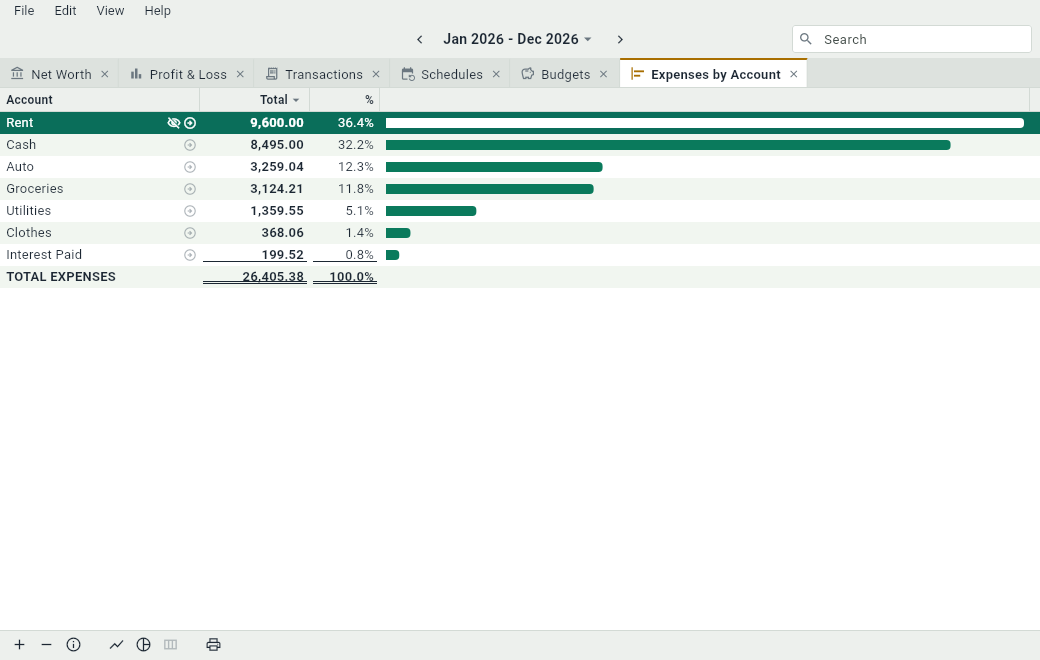
Expenses by Account ranks your expense accounts by what they took during the date range: the largest first, with its share of all your expenses and a bar to compare it with the others. It answers “where does my money go?” at a glance. Open it with Ctrl+7 or ViewExpenses by Account, or with the button 8 of a new tab.
What it shows
| Column | What it shows |
|---|---|
| Account | The expense account. |
| Total | What it took during the date range, in the native currency of the document. |
| % | Its share of all your expenses. |
| (the bar) | Its total next to the others: the account that took the most has the longest bar. |
The last row gives the total of all the expenses. An amount is the same as the Current column of Profit & Loss, but here everything is in the native currency, so that the accounts can be compared and their shares add up to 100%. Accounts that took nothing in the range don’t appear. An account that got more back than it spent, through refunds, comes last, in red and without a bar.
Leaving an account out
To compare your expenses without an account that dwarfs the others, like the rent, leave it out: select it and click next to it, or press Ctrl+Shift+X. It stays in its place, grayed out and without its amounts, and the total, the shares and the bars are those of the other accounts: the longest bar is now that of the account that took the most among them. Select it and click to count it again.
It’s the same exclusion as in Profit & Loss: an account you leave out here is also left out there and in Expenses by Month, and the other way around. See Leaving an account out.
Using it
- Click the title of a column to sort by it, and again to sort the other way; the total stays at the bottom. Sorted by Total, largest first, is how the view opens.
- Double-click an account, or click next to it, to see its entries.
- Change the date range to compare: this month, this year, the year before.
The view prints with its bars.