
Profit & Loss
The Profit & Loss tab is your income statement: what each income account brought in and each expense account took out during the date range, and what is left, your net income. Open it with Ctrl+2 or ViewProfit & Loss.
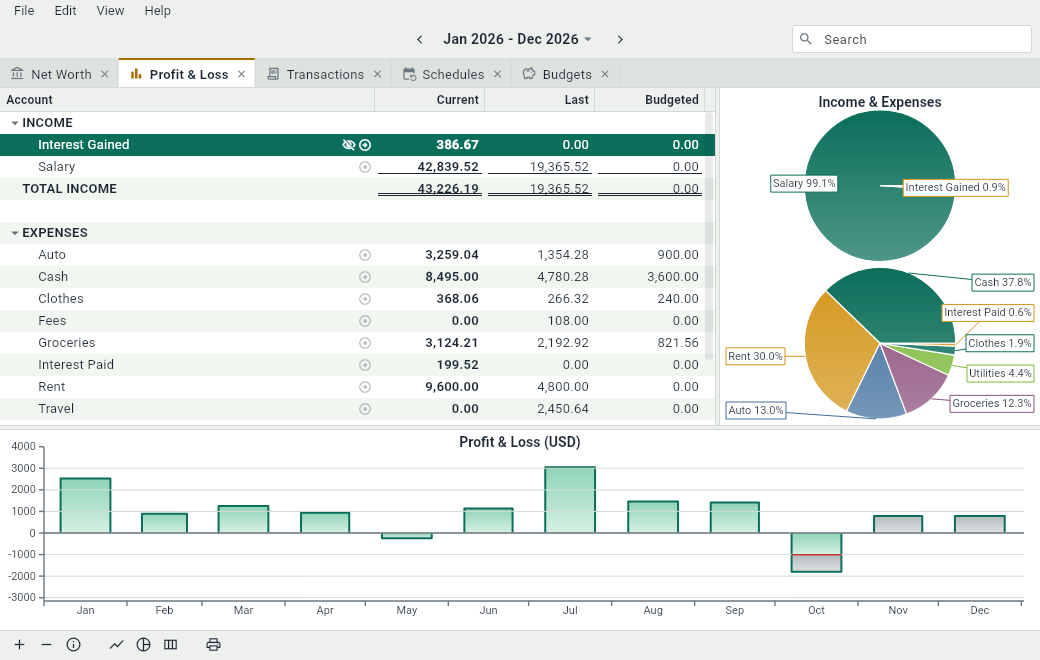
The sheet
The sheet lists your accounts under INCOME and EXPENSES, in their groups, with a total for each group and each type, and the NET INCOME at the bottom: the income minus the expenses. Totals are in the native currency.
It works like the sheet of Net Worth: open and close the groups with and , open an account with or a double-click, and leave an account out of the totals with or Ctrl+Shift+X.
Columns
| Column | What it shows |
|---|---|
| Account | The account or the group. |
| Account # | The number of the account, if you gave it one. Hidden at first. |
| Current | What went through the account during the date range. |
| Last | The same, for the period before: the previous month for a month, the previous year for a year. For the year to date, it’s the same part of last year. |
| Change | The difference between Current and Last. Hidden at first. |
| Change % | The same difference, in percent. Hidden at first. |
| Budgeted | What the budgets of the account still expect in the date range. If your budgets are right, Current plus Budgeted is what the account will show at the end of the range. |
The columns that can be hidden are listed in in the bottom bar.
The pie charts
At the right of the sheet, two pie charts show the share of each income account in your income, and of each expense account in your expenses. A closed group is one slice: close a group like “Home” in the sheet, and its rent, electricity and internet become a single slice. Show or hide the pie charts with or Ctrl+Alt+P.
The graph
Under the sheet, the graph shows your profit, month by month, or week by week when the date range is shorter than 100 days. Bars above zero are months when you earned more than you spent. What is still to come, from schedules and budgets, is gray. Show or hide the graph with or Ctrl+Alt+G.